
How to Create AI Agents for Wholesale Distribution Workflows
To create an AI agent for a wholesale distribution workflow, define its job, connect the approved business data, write reusable instructions, test its output, and configure when it runs and which actions need review. With inSitu Sales, that workflow can use customer, product, inventory, visit, order, and invoice tools available through the connection.
Build AI agents around the work your team repeats: a daily sales briefing, a warehouse stock review, a customer visit summary, or a reorder proposal. Connect ChatGPT, Claude, or Grok to inSitu Sales, then give the agent a specific role, the tools it needs, and a clear definition of a useful result.
This guide shows how to design those workflows, write the agent’s instructions, and turn verified analysis into dashboards and reviewed next steps. The illustrated examples use sample data so you can adapt the approach to your own company.
- 01Define the jobRole, goal, and output
- 02Connect toolsApproved inSitu records
- 03Write instructionsSteps and review rules
- 04Test and runVerify, trigger, and hand off
What is an AI workflow agent for distribution?
An AI workflow agent for distribution combines a defined task, reusable instructions, connected business tools, and a way to review its results. A sales briefing agent, for example, retrieves invoices for a specified period, calculates agreed metrics, explains exceptions, and prepares a report for the sales manager.
The plugin or connector supplies access to the available inSitu Sales tools. The agent’s instructions describe how to use them for your workflow. A dashboard is one possible output; a scheduled monitor also needs a compatible scheduler. This distinction helps you decide what to configure for the result you want.
How do you connect ChatGPT, Claude, or Grok to inSitu Sales?
The connections bring approved inSitu Sales information into an AI workspace. Available tools cover customers, products, customer pricing, inventory, visits, sales orders, invoices, customer statements, and order recommendations. Some tools can also create or update sales records, subject to the access and workflow enabled for the connection.
ChatGPT and Claude have inSitu Sales plugin listings. Grok uses a custom connector through Model Context Protocol, or MCP, the connection standard that lets an AI workspace use tools from another application. See the inSitu Sales AI agents overview for the current connection paths.
This matters because a question about your business needs your business records. A connected conversation can retrieve the information needed for a specific task, then use it to calculate a comparison, summarize an account, or prepare an order proposal. The connected company and available tools define what it can work with.
Choose the AI workspace your team already uses, then follow its connection path:
- ChatGPT: Open the inSitu Sales plugin listing, follow the installation flow, and connect your authorized inSitu Sales account.
- Claude: Open the inSitu Sales plugin listing. For an organization, use the plugin’s Connectors tab and select Add for your team beside insitu_sales, then connect the authorized account.
- Grok: Use Grok’s connector setup with the inSitu Sales MCP server, https://api.insitusales.com/mcp, and complete the connection’s authentication steps.
Plans, organization settings, and enabled tools can affect availability. Check the current setup instructions in the AI agents connection guide and select the company you intend to analyze.
How do you create an AI agent for your workflow?
Create a workflow agent by defining its role, saving reusable instructions in the features your AI workspace supports, making the required tools available, and testing the complete task. The setup interface differs between platforms; the following five decisions apply across the connected workflow.
Give the agent one measurable job
Start with a task such as “prepare the daily invoiced-sales briefing for the sales manager.” Specify the company, reporting period, time zone, currency, transaction type, and recipient. Define the result before adding more responsibilities.
For an inventory agent, specify the warehouse, products, units, and minimum-stock rules. For a customer briefing agent, specify which account information the representative needs. A narrow job makes the output easier to test and reuse.
Write the agent’s reusable instructions
Give the agent a role, a data source, a sequence of work, an output format, and rules for incomplete information. Include instructions to identify source records and explain calculations. Save the instructions through the configuration features available in your workspace, or reuse them to test the workflow manually.
- Role
- You prepare the sales manager’s daily invoice briefing.
- Data
- Use the authorized inSitu Sales company. Read invoices, line items, customers, and products needed for this task.
- Period
- Use the completed prior business day in our local time zone. Compare with the same weekday in the prior week.
- Work
- Calculate invoiced sales, invoice count, top customers, and top products. State currency, exclusions, and formulas.
- Output
- Prepare a short briefing and a review table. Include source references, changes worth investigating, and suggested follow-ups.
- Review
- Report missing data and failed requests. Prepare proposals for review; do not create or change sales records for this briefing.
Adapt the company, dates, metrics, and format. Configure a schedule and notification destination separately if you want recurring delivery.
Connect the tools the job needs
A sales briefing needs invoice and customer tools. A reorder workflow also needs recommendations, product information, pricing, and availability. Make these tools available through the authorized inSitu Sales connection and confirm that the selected company is correct.
If the agent must deliver a report elsewhere, configure the destination separately. A spreadsheet, team notification, or task-system handoff depends on the additional apps and permissions available to your workspace.
Test the agent against known records
Run the instructions against a period or customer your team already understands. Compare totals, quantities, and account references with inSitu Sales. Check how the agent handles missing information, incomplete results, and failed requests before relying on its output.
Measure time spent preparing the result and corrections needed before review. Refine the instructions when the agent repeatedly needs the same clarification. The successful instructions become a repeatable operating procedure for that task.
Configure the trigger, handoff, and review
Choose whether a person starts the agent or a compatible scheduler runs it at agreed times. Define who receives the result and what should happen when the check fails. For monitoring, also define the threshold and repeat-notification rules.
Decide which actions remain proposals and which enabled tools can create or update records after review. Test the complete handoff: a recommendation, its approval, the resulting record, and the confirmation that the intended step succeeded.
Why this changes the way teams analyze data
Traditional reporting often starts with selecting a report and working through its filters. Conversational analysis starts with the decision: What happened? Where should we look? What should we do next?
A manager can begin with invoiced sales for a defined period, then ask which products explain the change. The next question can narrow the analysis to a customer group or sales representative. Each answer becomes a starting point for a more focused investigation, without requiring the manager to describe every step of a spreadsheet calculation.
The biggest benefit is the shorter path between questions. When a finding raises another question, the team can continue the analysis while the business context is still clear. Reports remain useful for repeatable metrics; a connected AI workspace adds a flexible way to investigate what those metrics reveal.
“Compare this week’s invoiced sales with the previous week in our local time zone. Show the products and customers driving the change, explain how the totals were calculated, and include the source invoice references.”
Example prompt. Results depend on the connected records and enabled tools.
An effective answer should identify the period, currency, transaction type, calculation, and records behind the totals. A drop in orders may mean something different from a drop in invoiced sales. A partial day should not be compared with a completed day as though they cover the same activity.
Use the first answer to find the next question. If beverage sales are down, compare the affected customers’ purchase history, product availability, and recorded visits. Those comparisons can reveal where to investigate; a correlation alone does not establish why the decline happened.
Ask your agent to create a dashboard around your decisions
An agent can help turn the analysis into a dashboard your team can review. Ask for sales totals, trends, customer breakdowns, and an exception list in one view. If your AI workspace supports creating files or visual artifacts, specify the format you want and the filters the team needs.
The screenshot below shows a custom example we designed with sample data. A dashboard built for your company should connect its calculations to approved records and state how its data refreshes. Choose the questions first, then let the design make the answers easier to see.
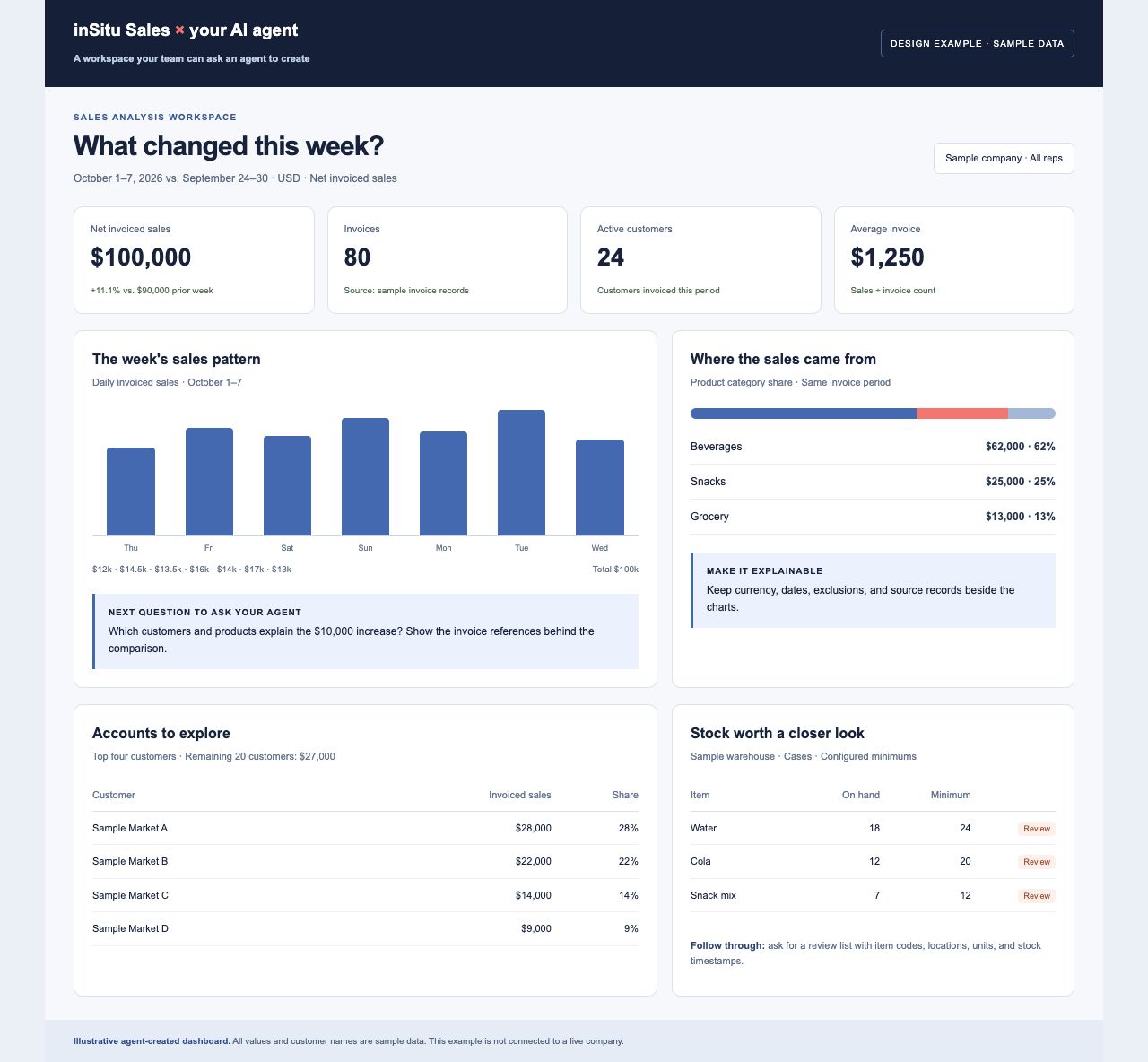
Prompt to adapt: “Create a sales dashboard from the verified invoice analysis. Include period comparisons, product categories, top customers, and warehouse stock exceptions. Add date and representative filters, show the currency and metric definitions, and make the source references accessible.”
Which distribution workflow agents can you create?
Daily sales briefing agent
A daily sales briefing agent summarizes invoices, leading products, and the accounts driving activity. The manager can then investigate an unusual result in the same workspace. Configure the output around the reader: customer changes for sales, or product exceptions for operations.
Define whether the briefing uses orders or invoices, how it treats cancellations and credits, and which company and time zone it covers. These small choices determine whether two people can rely on the same number when discussing the day.
Customer visit preparation agent
A customer visit preparation agent builds an account briefing from recent purchases, open invoice balances, available pricing, and recorded visits. The rep can arrive with a focused conversation: a product the customer stopped buying, an upcoming reorder, or an invoice that needs discussion.
Ask the assistant to show the underlying customer and transaction references. A useful briefing connects its talking points to the account’s history, so the rep can distinguish a recorded fact from a suggested next conversation.
Reorder recommendation agent
The connected order recommendation tool can return suggested products and quantities, confidence, consumption estimates, coverage, and a recommended next order date. This gives the representative a starting point for replenishment discussions using the customer’s buying pattern.
Follow the recommendation with a pricing and availability check. Review units, quantities, discounts, and the customer before creating the order. The recommendation itself does not place an order; creating a sales record is a separate step using the available write tools.
Customer history and suggested quantities
Customer pricing, available stock, and units
Customer, items, quantities, and totals
Use the enabled order tool after approval
Inventory review agent
Ask about an item’s stock in the warehouse that matters to today’s work. Compare the result with available order information or a customer recommendation. A product’s total stock across locations may hide a shortage in the location supplying a particular route.
Keep units and locations visible. Ten cases and ten individual units represent very different availability. Ask for the inventory timestamp where available, and account for mobile activity or integrations that have not yet synchronized. Explore the inventory and warehouse workflow alongside the AI analysis.
Customer statement agent
The connection includes a tool to generate a customer statement PDF for a specified account and period. A team member can first identify the customer, review relevant invoice information, and request the statement in the same workspace.
That connects account analysis with a practical document the office already uses. Generating a statement and sending it to a customer are separate actions; delivery needs the appropriate communication tool and authorization.
Field activity review agent
Visit information adds context to transaction reports. Ask which accounts have recorded visits during the period, then compare that activity with their orders or invoices. This can help a manager prepare coaching questions and identify accounts needing follow-up.
A missing record needs investigation before it becomes a conclusion about a representative’s performance. Review the date range, synchronization, and recording practices. For teams selling from vehicle stock, keep the analysis tied to the DSD and route accounting process.
How do you make an AI agent monitor inventory or sales?
To make an AI agent monitor inventory or sales, connect the relevant tools, define an exception rule, and configure a supported scheduler to repeat the check. Specify the notification destination, evidence required, and review owner. The monitoring workflow should report failed or incomplete checks as well as business exceptions.
For example, a daily workflow could review low stock at a selected warehouse, or a weekly workflow could identify customers whose invoiced sales have fallen beyond an agreed threshold. The assistant can prepare the finding with evidence and a suggested owner for follow-up.
Recurring checks require a scheduler or automation setup that can run the connected tools. Availability depends on the AI workspace and configuration. Installing the plugin establishes the connection; the schedule, notification destination, and review rules must also be configured.
Illustrative rules to configure in a supported scheduled workflow.
Flag selected items below the agreed minimum. Show location, unit, quantity, and check time.
Flag customers with a defined decline in invoiced sales against a comparable prior period.
Flag invoices whose due date has passed and whose recorded balance remains positive.
Report missing data, failed requests, or incomplete coverage so the team can investigate.
A good monitor has five clear choices: what to inspect, when to inspect it, what counts as an exception, who receives the finding, and what requires review. Ask it to flag incomplete checks as well as business exceptions. An unavailable data source should produce a failed-check notice, not a reassuring “all clear.”
Begin with one rule the team can explain easily. Review its first runs against the source records, adjust noisy thresholds, and agree when a repeated exception needs another notification. This makes monitoring useful enough to become a habit.
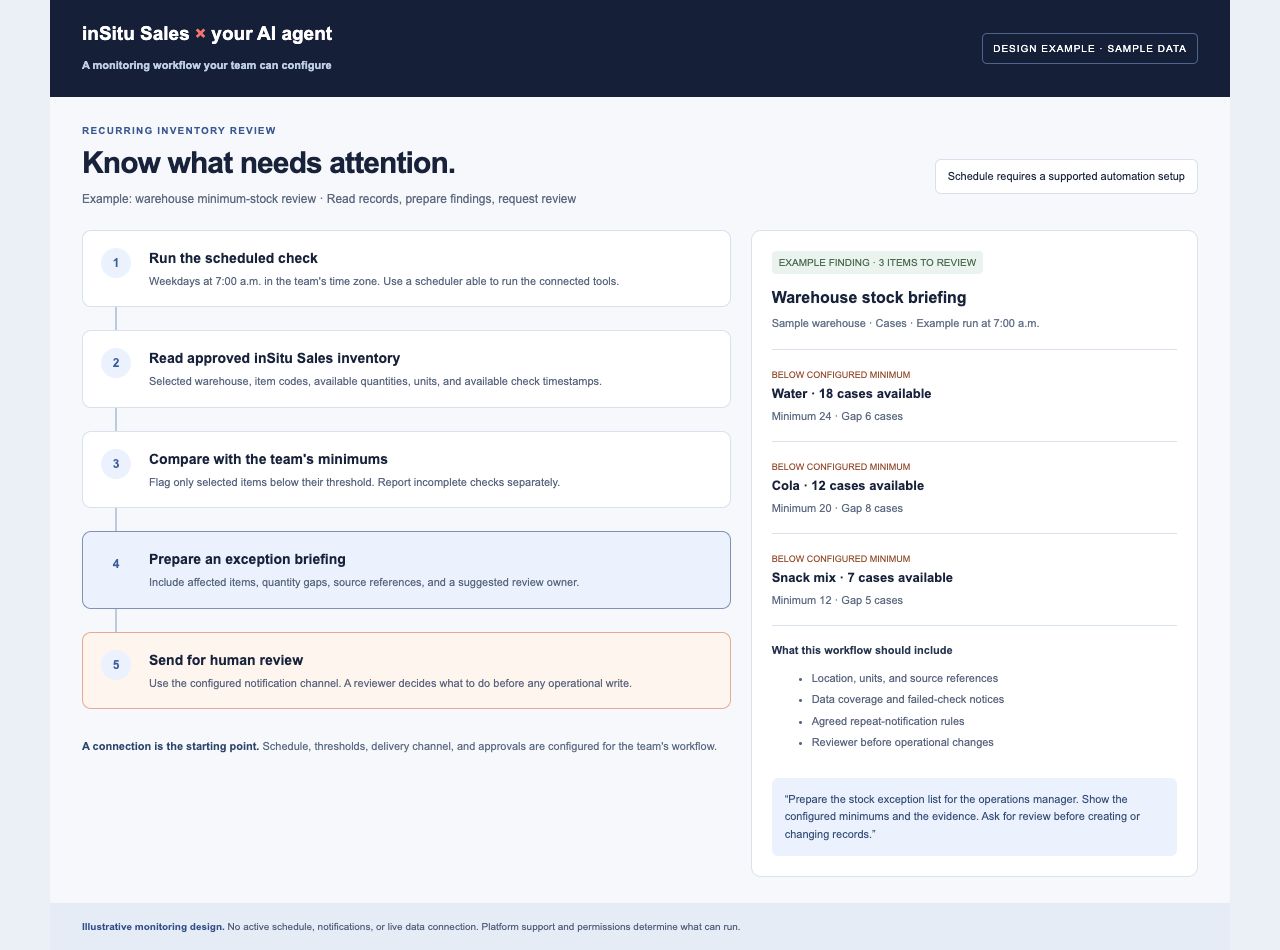
Prompt to adapt: “Design a weekday inventory monitor for our selected warehouse. Use our item minimums, include source references and check times, and prepare an exception briefing for the operations manager. Explain the scheduler and notification setup it needs, then show the workflow for review.”
Connect analysis to the rest of your workflow
An operational finding becomes more valuable when it reaches the person who can use it. A customer decline can become an account briefing. An inventory exception can become a review list. An approved replenishment proposal can become a sales order through the enabled inSitu Sales tools.
Where your AI workspace supports additional apps, you can also configure a workflow to prepare a spreadsheet, draft a team update, or hand a reviewed finding to a task system. Each additional connection has its own access and capabilities. The inSitu Sales plugin supplies the operational context; the surrounding workflow determines where the result goes.
This creates a practical bridge across departments. Sales can explain which customers need attention. Operations can check the relevant stock. The office can review the resulting records and their integration status. Your ERP and accounting connections continue to determine how those records synchronize.
Start with a clear handoff: “Prepare the finding and a proposed next step for review.” As the workflow becomes reliable, add the specific actions your team wants to support and decide who can authorize them.
Questions about creating AI workflow agents
Do you need to code to start an inSitu Sales AI workflow?
You can start by connecting an available plugin or connector and writing instructions for a manual workflow in your AI workspace. A deployed custom dashboard, scheduled monitor, or multi-app workflow may need additional configuration or development, depending on the platform and the result you want.
Does installing a plugin create a complete agent?
The inSitu Sales plugin supplies available tools and the data connection. A complete workflow also needs a defined job, reusable instructions, an output, and review rules. A recurring agent additionally needs a supported schedule or trigger and a destination for its findings.
Can the agent create a sales order?
The available inSitu Sales tools include sales order creation and updates. In a reorder workflow, review the customer, products, units, quantities, and pricing before the enabled write tool creates the record. A recommendation returned by the recommendation tool does not place an order.
Can the same workflow run in ChatGPT, Claude, and Grok?
The same business instructions can provide a starting point across the three workspaces. Verify the connected tools and adapt saved instructions, scheduling, visual outputs, and notification delivery to the capabilities and permissions available in each platform.
Build your first distribution workflow agent.
Bring a daily sales briefing, an inventory monitor, or a customer reorder scenario. We’ll help you map the inSitu Sales connection, the agent’s instructions, and the reviewed next step your team needs.
Book an AI workflow demo →